Rick's Daily Tips

Your daily dose of practical, easy to follow tech tips!

  • Home
  • Rick’s Bio
  • Advertise
  • Privacy Policy
  • Rick’s Tip Jar
  • Get My Tech Tips Newsletter
  • Recommended Tech Gear
  • Contact Me

Tips for setting up a new PC

Posted on December 28, 2012

laptopWhen most people buy a new PC they take it home, open up the box, connect it to a power outlet and the Internet and get right to work putting it through its paces. And it’s easy to understand why. After all, who among us doesn’t enjoy playing with a new “toy”?

But in today’s world we need to be vigilant against hackers, viruses and spyware above all else! With that in mind, here is my list of things that should be done to every new computer before you even think about using it for anything meaningful: [Read more…]

Save big with online coupons and promo codes

Posted on December 23, 2012

Coupons have been a staple of the Sunday newspapers for decades, and dedicated “clippers” often save hundreds of dollars per month simply by investing a few minutes each week combing the papers for the best deals.

Few people know it, but coupons and “promo codes” can save shoppers big bucks online as well.

[Read more…]

How to use System Restore in Windows 7

Posted on December 22, 2012

system-restore-screenshot

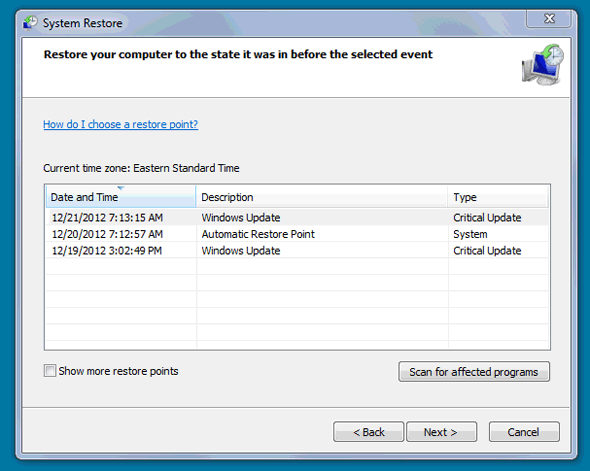
The System Restore utility included with the latest versions of Microsoft Windows is one of the most wonderful tools Windows users have at their disposal. It works somewhat like a time machine, allowing you to restore your Windows installation and software back to the state they were in at any point in time at which a Restore Point was created. If you make a change to your system that renders it unbootable or if a virus or other problem causes issues with Windows performing the way it should, a System Restore can almost always save the day.

If System Restore is turned on, the system creates Restore Points automatically from time to time. Restore Points are also created before updates are installed or other major changes are made to your Windows installation. What’s more, you can create a Restore Point manually should you feel the need to do so for any reason. [Read more…]

How to quickly minimize all open windows

Posted on December 22, 2012

For various reasons we often need to minimize all the open windows in order to see the Desktop. Instead of clicking the minimize button for each window one by one we can minimize all the windows at once with a single mouse click or keystroke – your choice. Here’s how:

show-desktop-icon1 – Click the “Show Desktop” icon located in the Quick Launch toolbar in the lower left corner of the screen. In the screenshot at right the “Show Desktop” icon is the first icon to the right of the “Start” orb. It might be in a different position on your screen. To restore the windows back onto the screen, simply click the icon again. Note: Windows 7 doesn’t display the Quick Launch toolbar by default so you’ll need to use option 2 below…

windows-key2 – Hold down the “Windows” key and press the “D” key. You’ll typically find the “Windows” key at the lower left corner of the keyboard between the “CTRL” and “ALT” keys. (Refer to the image at right.) Pressing Windows-D again will restore all the windows back onto the screen.


Beware of installing unwanted software and toolbars

Posted on December 21, 2012

toolbar-install

One of the great things about the Internet age is the availability of thousands of useful programs, tools and apps just waiting for you to download and use free of charge. I use a number of these freebies on a daily basis, and most of them work just as well (and in some cases better) than their commercial counterparts. If you aren’t careful however you can easily install “extras” such as browser toolbars and additional apps that can slow down your system or even steal your personal information.

These “extras” are usually downloaded with your permission whenever you install a “free” program. The reason many of these programs are free is because the companies behind the toolbars and “extra” apps pay the maker of the free software to help them distribute it. This is how it works… [Read more…]

  • « Previous Page
  • 1
  • …
  • 230
  • 231
  • 232
  • 233
  • Next Page »

– Ad –
Midland WR120B NOAA Emergency Weather Alert Radio

The next time severe weather or some other disaster strikes you don’t want to be caught with no warning. This will ensure that you always receive up-to-the-minute weather and other emergency info via audio and visual alerts.

Click here to check it out at Amazon.


Popular…

Miss one of my Daily Gadget Picks? Check here.

How do I ask you a tech question?

Step-by-step guide to completely ridding your PC of viruses and other malware

10 reasons why I recommend buying tech gear from Amazon

How to accurately evaluate product reviews on Amazon


Advertise

Guest Post Guidelines

Want to ask me a tech question?

Recommended Tech Gear

Privacy Policy

Computer Tips
Smartphone Tips
Blogging Tips

Tech Q & A
Reviews
Tech News

Write for RicksDailyTips.com

Scam alerts
Downloads

Copyright © 2026 RicksDailyTips.com

Affiliate Disclaimer


Rick's Daily Tips is hosted by InMotion Hosting. Click here to find out why.

This blog uses cookies to ensure that you receive the best experience on my website. Please click 'Accept Cookies' to continue.