Rick's Daily Tips

Your daily dose of practical, easy to follow tech tips!

  • Home
  • Rick’s Bio
  • Advertise
  • Privacy Policy
  • Rick’s Tip Jar
  • Get My Tech Tips Newsletter
  • Recommended Tech Gear
  • Contact Me
You are here: Home / Tech Questions & Answers / Q&A: Why does Chrome take forever to start loading a page?

Q&A: Why does Chrome take forever to start loading a page?

Posted on February 17, 2013

chrome-os-logoQuestion from Judy L: I’ve been using Google Chrome as my primary web browser for about 3 months now and I really like it. But a couple of days ago it started taking forever to begin loading a web page. What could be causing this?

Rick’s answer: Judy, when you try loading a page, does it say “Resolving proxy” in the lower left-hand corner of the browser? If so (and I’m sure it probably does), something or someone has configured Chrome to access websites through a web proxy.

If you’re the only person that uses this computer I’m guessing that your system has malware on it that initiated the change without your knowledge. The first thing you need to do is adjust the settings in Chrome to prevent it from using a web proxy. Here’s how:

1 – Click the Menu icon in the upper right-hand corner of the screen (look for 3 horizontal lines stacked on top of one another).

2 – Click Settings.

3 – Click Show advanced settings.

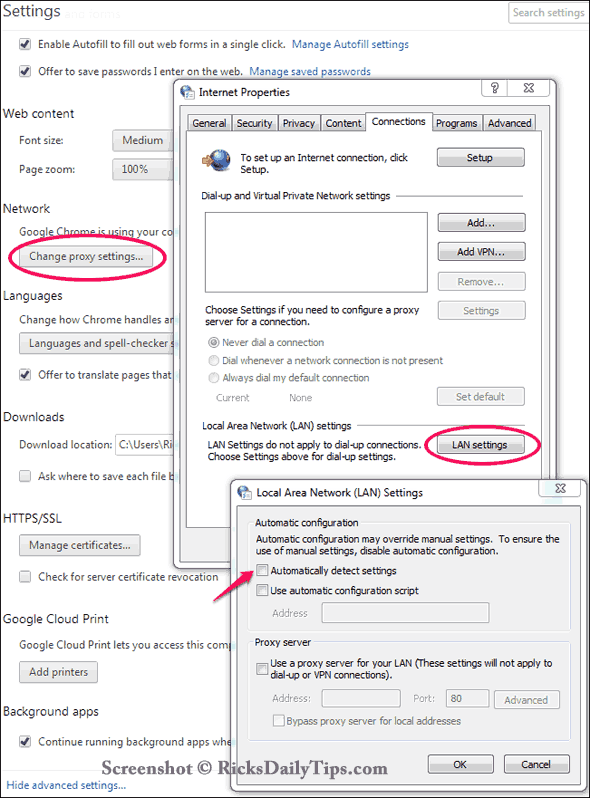
4 – Scroll down to the “Network” section, then click Change proxy settings. This will cause a box containing the Proxy settings to pop up.

5 – Click LAN settings. Another box will pop up containing the LAN settings.

6 – Uncheck the box beside Automatically detect settings.

Here is a screenshot with the boxes what will pop up super-imposed on the main screen:
chrome-proxy-settings-screenshot

After you get Chrome’s proxy settings squared away, make sure your anti-virus software is up to date (click the update button) and run a full system scan. When the scan is complete instruct the software to remove the threats. If you aren’t running an anti-virus program, you’ll find information about the free version of Bitdefender here. I use Bitdefender on all my PCs and highly recommend it.

Next, if you don’t have it already, download and run Spybot Search and Destroy in order to find and remove any malware that your anti-virus software might have missed.


Do you have a tech question of your own for Rick? Click here and send it in!

– Ad –
Auoace No Stud TV Wall Mount

Have you ever tried attaching a TV mounting bracket to a wall only to find there were no studs in the places where you needed them to be? And don’t get me started on the difficulty of using drywall anchors!

Or perhaps you moved a TV to a different place and were left with unsightly anchors and/or holes in your wall?

Well, this gem solves both of those problems. You can mount any VESA 12-55 inch TV (up to 99 lbs) without drilling any holes in your wall or needing to locate any studs. And if you ever decide to move the TV you won’t be left with any ugly large holes, anchors or screws. This is hands-down the best way to install a TV on your wall.

Click here to check it out at Amazon.

Popular…

Miss one of my Daily Gadget Picks? Check here.

How to save money when shopping for a new computer.

How do I ask you a tech question?

Step-by-step guide to completely ridding your PC of viruses and other malware

10 reasons why I recommend buying tech gear from Amazon

How to accurately evaluate product reviews on Amazon


Advertise

Guest Post Guidelines

Want to ask me a tech question?

Recommended Tech Gear

Privacy Policy

Computer Tips
Smartphone Tips
Blogging Tips

Tech Q & A
Reviews
Tech News

Write for RicksDailyTips.com

Scam alerts
Downloads

Copyright © 2026 RicksDailyTips.com

Affiliate Disclaimer


Rick's Daily Tips is hosted by InMotion Hosting. Click here to find out why.

This blog uses cookies to ensure that you receive the best experience on my website. Please click 'Accept Cookies' to continue.