Rick's Daily Tips

Your daily dose of practical, easy to follow tech tips!

  • Home
  • Rick’s Bio
  • Advertise
  • Privacy Policy
  • Rick’s Tip Jar
  • Get My Tech Tips Newsletter
  • Recommended Tech Gear
  • Contact Me
You are here: Home / Computer Tips / How to make Windows 8.1 boot directly to the Desktop

How to make Windows 8.1 boot directly to the Desktop

Posted on March 19, 2015

windows-8-1Windows 8.1 is a huge improvement over Windows 8 because it fixes a number of the most despised “changes” that Microsoft made to the newly-designed Windows interface.

One of the most appreciated “fixes” is the ability to have Windows 8.1 boot directly to the Desktop instead of the Start Screen – but this isn’t the default. Follow these steps to make Windows 8.1 boot directly to the Desktop: 

1 – With the Start Screen active, start typing the word navigation.

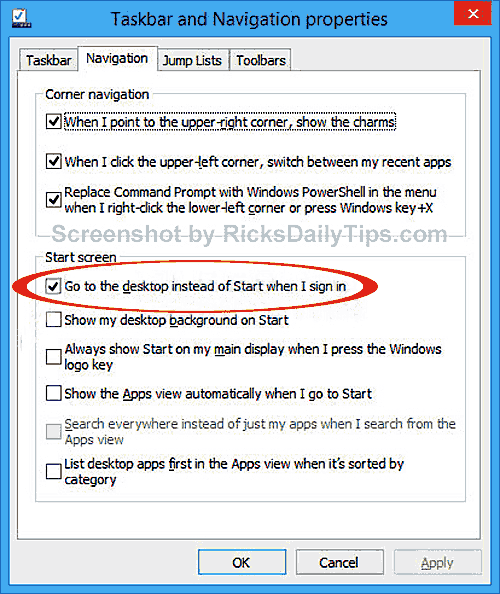
2 – Select Navigation properties from the search results to display the Taskbar and Navigation properties tab. You should see something like this:
boot-to-desktop-screenshot

3 – Check the box beside Go to the desktop instead of Start when I sign in.

4 – Click Apply, then click Ok.

From now on your computer will boot directly to the Desktop instead of the Start Screen.

– Ad –
 
KAMRUI Pinova P1 Mini PC Computer


This mini-PC puts full desktop power into a tiny package. I use two mini-PCs in my office on a daily basis, and I love them. This one is a great machine for the money. Runs Windows 11 or Linux – just install the O.S. of your choice.

Click here to check it at Amazon.


Popular…

Miss one of my Daily Gadget Picks? Check here.

How do I ask you a tech question?

Step-by-step guide to completely ridding your PC of viruses and other malware

10 reasons why I recommend buying tech gear from Amazon

How to accurately evaluate product reviews on Amazon


Advertise

Guest Post Guidelines

Want to ask me a tech question?

Recommended Tech Gear

Privacy Policy

Computer Tips
Smartphone Tips
Blogging Tips

Tech Q & A
Reviews
Tech News

Write for RicksDailyTips.com

Scam alerts
Downloads

Copyright © 2026 RicksDailyTips.com

Affiliate Disclaimer


Rick's Daily Tips is hosted by InMotion Hosting. Click here to find out why.

This blog uses cookies to ensure that you receive the best experience on my website. Please click 'Accept Cookies' to continue.