 Rick’s Tech Tips Newsletter
Note: This post contains affiliate links.
Hard drives and SSDs are dirt cheap these days when compared to the prices from times past, and SSDs that are large enough to actually be usable are now quite affordable.
That’s why so many people are choosing to simply replace the hard drives in their computers instead of buying an entire new PC.
If you’ve taken the plunge and replaced the hard drive in your computer with a larger and/or faster drive, you might be wondering what you can do with your old drive.
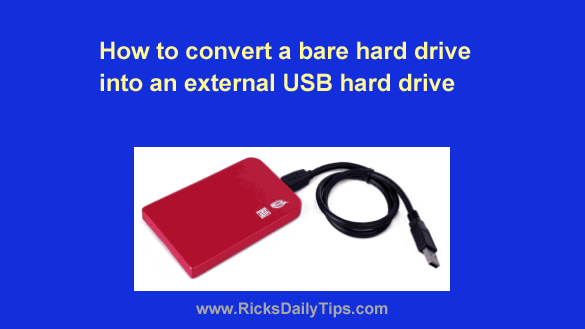
Well, you have several options, but my favorite is converting that old drive into an external USB hard drive. All you need to do is purchase an external USB hard drive enclosure and plug your drive into it. It really is that simple!
External hard drive enclosures used to be a little on the expensive side, but no more. In fact, you can find them on Amazon starting at around 10 bucks.
Important: Most recent laptop hard drives have SATA connections so virtually any 2.5 inch SATA compatible external drive enclosure will work with them.
However, if your drive was removed from a desktop computer likely a 3.5 inch drive. What’s more, it could well have a different interface type (IDE/ATA/PATA, etc.).
If your drive wasn’t removed from a fairly recent laptop you’ll need to purchase an external enclosure that matches the drive type and size.
If you’re unsure about which type of external hard drive enclosure you’ll need, feel free to contact me and I’ll help you choose one to match your drive.
Simply send me a message containing the brand and model of either the hard drive itself or the computer it was removed from and I’ll answer with a couple of suggestions.
While your new external hard drive likely won’t be anywhere near as spacious as one you could buy off the shelf today, it will likely be plenty big enough to store a backup set or two.
Besides, most of us can always use an extra external drive, right? And at around 10 bucks it’s quite a bargain!
Here are a couple of things to consider should you decide to convert your old internal hard drive into an external USB hard drive:
1 – If your computer doesn’t have super-fast USB 3.1 or USB 3.2 ports, you can probably add some for about the cost of a good pizza.
2 – After installing the drive in the enclosure and plugging it into your PC, you’ll probably want to reformat it. Simply right-click on the the drive in Windows Explorer / File Explorer and click Format.
Important: Make sure your new drive and its Windows installation is working as it should and that you’ve copied all of your files off the old drive before you format it!
That’s all there is to it! Good luck!
Click here to check out the current selection of External USB Hard Drive Enclosures at Amazon.