
Rick's Daily Tips

Your daily dose of practical, easy to follow tech tips!

  • Home
  • Rick’s Bio
  • Advertise
  • Privacy Policy
  • Rick’s Tip Jar
  • Get My Tech Tips Newsletter
  • Recommended Tech Gear
  • Contact Me
You are here: Home / Computer Tips / How to automatically start up Firefox in Private Browsing mode

How to automatically start up Firefox in Private Browsing mode

Posted on January 4, 2013

firefox-logoIf you value your online privacy above all else then you’ll probably enjoy using Firefox’s Private Browsing mode.

Private Browsing prevents Firefox from saving any of your Internet history in its log files which in turns makes it difficult from a third party to see what you’re been doing on the Internet.

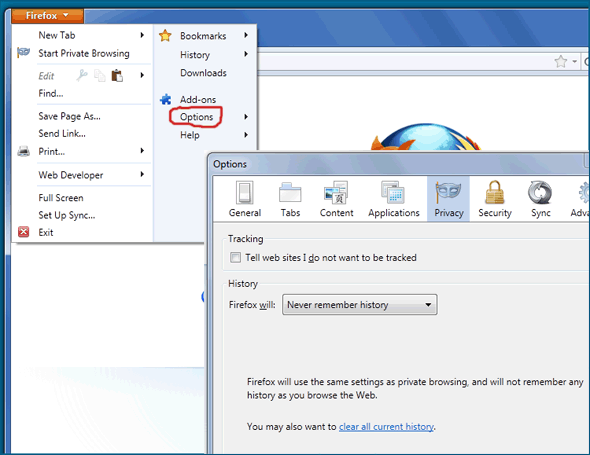
Most people who use Private Browsing simply clicking the “Start Private Browsing” option on the main Firefox menu, but this only turns on Private Browsing for the current session only. But there is a simple way to instruct Firefox to turn on Private Browsing automatically every time the program is started. Here’s how:

1 – Open Firefox and click the orange “Firefox” tab in the upper left-hand corner of the screen. (Refer to the screenshot below.)

2 – Don’t click “Start Private Browsing”. Instead, click “Options”.

3  – Click the “Privacy” tab.

4 – Find the “Firefox Will:” field, then click the down arrow and select “Never remember history”.

5 – Click “Ok”.
firefox-secure-browsing

There you have it! From now on Firefox will automatically start up in Private Browsing mode ever time you open it!

– Ad –
Sabrent Voltik Premium 252W 8-Port USB Charging Station

This gem will charge all of your devices at once, including fast charging for your laptop, tablet or most any device that charges via USB.

It has both USB-A and USB-C charging ports for charging virtually any kind of device. The color LCD screen shows the exact charging state for all 8 USB charging ports.

Click here to check it out at Amazon.


Popular…

Miss one of my Daily Gadget Picks? Check here.

How to save money when shopping for a new computer.

How do I ask you a tech question?

Step-by-step guide to completely ridding your PC of viruses and other malware

10 reasons why I recommend buying tech gear from Amazon

How to accurately evaluate product reviews on Amazon


Advertise

Guest Post Guidelines

Want to ask me a tech question?

Recommended Tech Gear

Privacy Policy

Computer Tips
Smartphone Tips
Blogging Tips

Tech Q & A
Reviews
Tech News

Write for RicksDailyTips.com

Scam alerts
Downloads

Copyright © 2026 RicksDailyTips.com

Affiliate Disclaimer


Rick's Daily Tips is hosted by InMotion Hosting. Click here to find out why.

This blog uses cookies to ensure that you receive the best experience on my website. Please click 'Accept Cookies' to continue.